
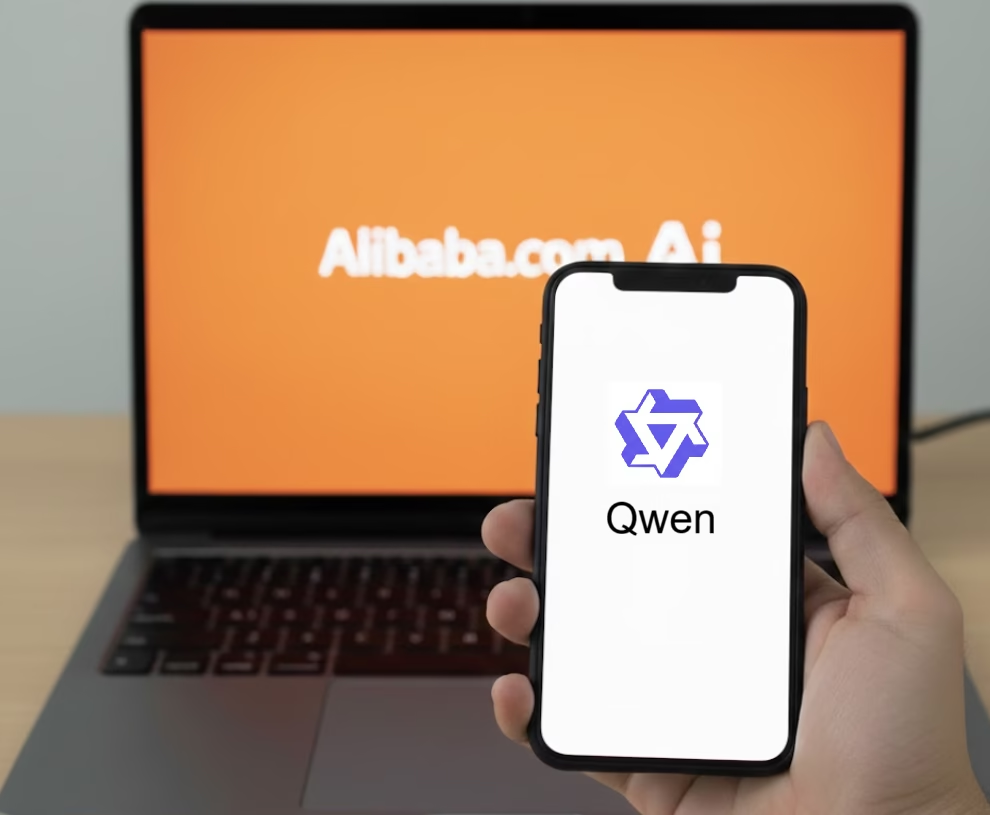
Alibaba’s Qwen AI has quickly become one of the world’s fastest-growing AI apps, thanks to its powerful language model family and user-friendly tools for creativity, productivity, and research. Whether you want to write documents, generate images, summarize PDFs, chat naturally, or code with AI assistance, Qwen is designed to work smoothly across both mobile devices and computers.
Here is a simple, step-by-step guide to help new users get started on mobile phones and laptops.
📱 Using Qwen AI on Your Mobile Phone
Step 1: Download the Qwen AI App
- Go to Google Play Store (Android) or Apple App Store (iPhone).
- Search for Qwen AI or 通义千问 (Tongyi Qianwen) developed by Alibaba Cloud
- Tap Install.
Step 2: Create or Log In to Your Alibaba Account
- You can sign in using:
- Alibaba account
- Taobao account
- Email or phone number
- Verification takes only a few seconds.
Step 3: Choose a Chat Mode
The app typically offers:
- General Chat – ask anything, write essays, solve problems.
- Image Generation – create photos, art, posters, designs.
- Document Assistant – summarize PDFs, rewrite text, translate, and make slides.
- Coding Mode – get help with programming tasks.
Tap the mode you want to begin.
Step 4: Start Chatting
Type or speak your question:
- “Create a travel plan for Singapore.”
- “Explain this paragraph in simple English.”
- “Generate a futuristic car design.”
Qwen will respond in seconds.
Step 5: Use Extra Tools
On the mobile app, you may find:
- Upload File (PDF, images)
- Translate
- AI Presentation / AI Notes
- Image-to-Text
- Chat with Documents
These tools help you use AI for studying, work, and creativity.
💻 Using Qwen AI on Your Laptop/PC
You can access Qwen AI directly from your browser without installing anything.
Step 1: Visit the Official Qwen Website
Open your browser and go to the official Qwen AI platform (e.g., qwen.cloud, qwen.ai, or Alibaba’s AI portal depending on region).
Step 2: Log In With Your Account
Sign in using the same account you use on mobile.
This syncs your chat history across devices.
Step 3: Select Your Model or Mode
Laptop versions usually offer:
- Qwen General Chat
- Qwen VL (Vision + Language) for images
- Qwen Coding / Agent Mode
- Upload documents for large reports or research papers
- Workplace tools like AI Writer or AI Analyst
You can switch modes easily from the side menu.
Step 4: Chat, Create, or Upload Files
Examples of what you can do:
- Write a full report or academic paper
- Generate HD images
- Analyze long documents (20–100+ pages)
- Create PowerPoint-style presentations instantly
- Perform data analysis with AI assistance
Simply type your request and press Enter.
Step 5: Download or Export the Output
Qwen lets you save your AI work as:
- Word document
- Image
- Text file
- Presentation slides
This is especially useful for students, researchers, content creators, and office professionals.
🔄 Syncing Between Phone and Laptop
Your chats and files automatically synchronize when you log in with the same account.
Start a project on your laptop → continue on your phone → finish on your laptop again.
⭐ Why People Like Qwen
- Fast and lightweight
- Multimodal (text + image)
- Open-source model family
- Strong reasoning abilities
- Free or low-cost options
- Great for daily users, students, and businesses